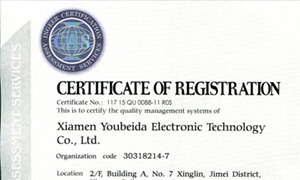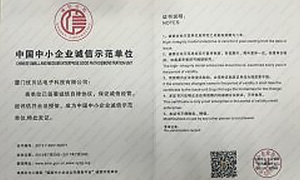




Ubeida got the ISO9001 certificated
In 2015, we got the ISO9001:2008 certificated.We have strict quality management system, which will help us improve the product quality and perfect the production management.
Poor headset microphone audio is a common problem in offices, call centers, and remote meetings. If customers frequently ask you to repeat yourself or colleagues complain that your voice sounds muffled, the headset may not be the only cause. In many cases, a few simple adjustments can significantly improve call quality.

Incorrect microphone position
The most common issue is microphone placement. When the microphone is too far from your mouth or pointed in the wrong direction, your voice level becomes inconsistent.
Best practice:
Keep the microphone 2–3 cm beside your lips.
Do not place it directly in front of your mouth.
Use an adjustable boom microphone whenever possible.
This position reduces popping sounds and improves speech clarity.
Background noise
Open offices often contain conversations, keyboards, and other distracting sounds. Consumer headsets designed for music or gaming usually provide limited noise reduction, so background noise can overpower your voice.
Professional UC headsets with noise-cancelling microphones are designed for business communication and generally deliver clearer call audio.
Wrong audio device selected
Meeting applications such as Zoom and Microsoft Teams may automatically choose your computer’s built-in microphone instead of the headset microphone. This can make your voice sound distant or echoey.
Check the microphone settings in your meeting software and manually select your headset as the input device.
Network issues
Audio dropouts and robotic sound are often caused by unstable internet connections rather than the headset itself. For important meetings, use a wired Ethernet connection whenever possible and avoid heavy network activity during calls.
Hardware wear
After long-term daily use, microphone components and cables may wear out. Persistent static noise, crackling, or intermittent audio can indicate hardware aging, and replacement may be necessary.
Quick 3-Minute Check
1. Adjust the microphone position.
2. Test the headset on another device.
3. Move to a quieter location.
4. Verify the microphone settings in Zoom or Teams.
5. Check your internet connection.
Most headset microphone problems can be identified within a few minutes.
FAQ
Why does my headset microphone sound muffled?
It is usually caused by incorrect microphone placement or the wrong input device being selected.
How close should the microphone be?
About 2–3 cm from the corner of your mouth.
Are UC headsets better for office calls?
Yes. UC headsets are optimized for voice communication and typically provide better microphone clarity and noise reduction than consumer headsets.
Clear microphone audio improves customer experience, meeting efficiency, and your company’s professional image. Proper microphone positioning, correct software settings, and a professional UC headset can solve most office communication audio problems.